Using the CUPS administration system to add ICTprintservice queues
Getting started
- Start up your favourite browser and then enter the URL:
http://localhost:631
You should now see the CUPS web-based administration system's home page:

- Now click on printers in the black menu bar at the top of the screen and if your system already has some printers set up, you will see a screen like this:

- Scroll down to the bottom of the screen:

- and click on the Add Printer button near the bottom lefthand corner to go to the Add Printer system
- Depending on how your system is set up you may be challenged for the CUPS administrator's password if you are not already the root user. Most systems are set up so that the CUPS admin password is the same as the root user's password so you'll need this to be able to add a new printer - if your system is set up differently and requires a separate password, then you will need to know this. If you have such a system and you know the root password but not the CUPS password, then you won't be able to use the CUPS admin system to add a new printer or print queue. Instead, you can either use the alternative method of editing the CUPS printers.conf file or you can use your Linux or UNIX vendor's utility (if there is one):


- Into the box labelled Name: type the name you would like to call the ICTprintservice monochrome queue - a good choice would be
ICTprintservice-mono

- The Location: box is optional:

- as is the Description: box below it:
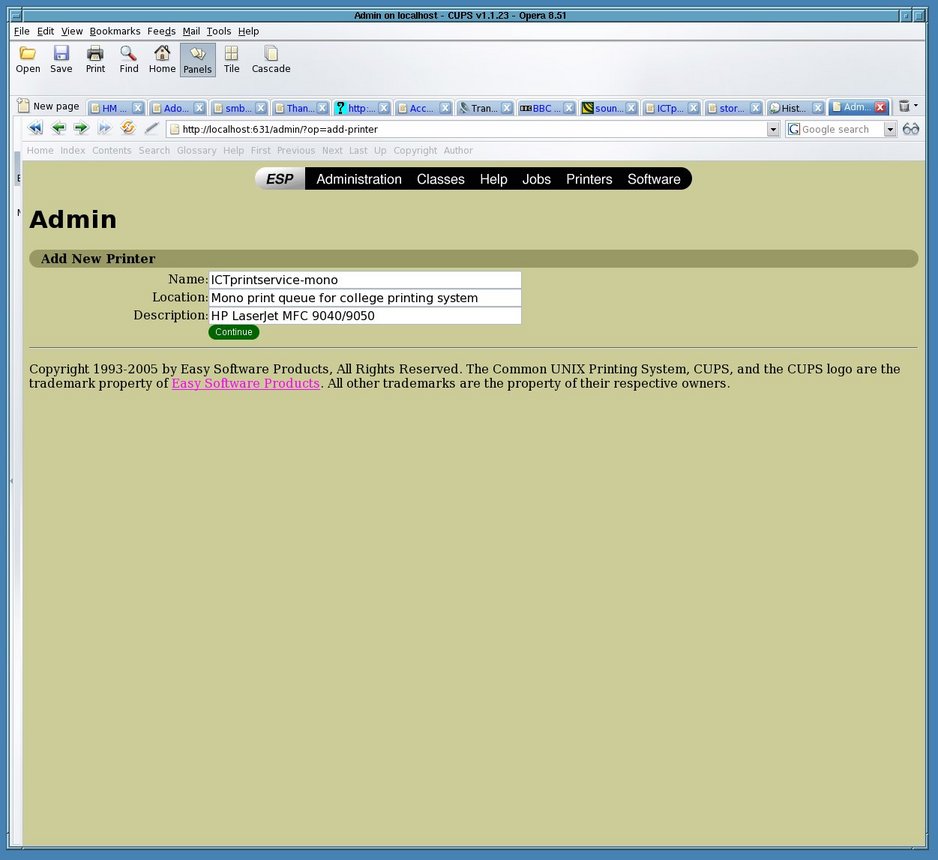
- Now click on the Continue button to move on to the next step:
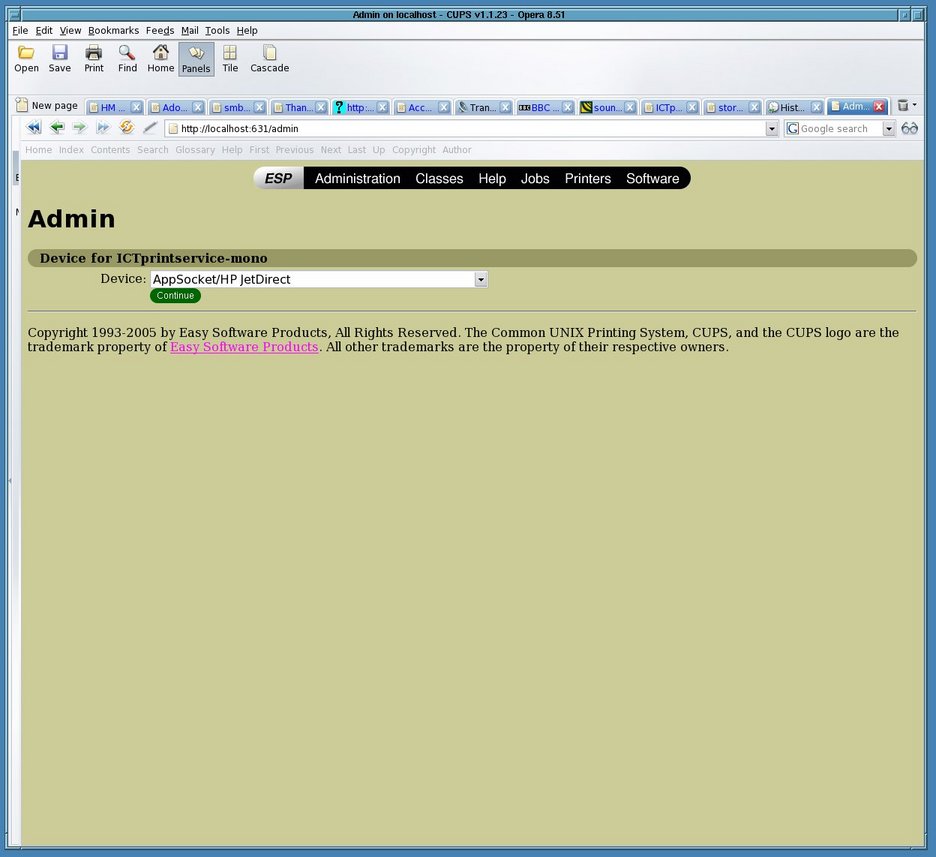
- Now scroll down the Device box and select the
LPD/LPR Host or Printer
option (yes, this is correct - although your system is using CUPS, the ICTprintservice server is using LPD for remote connections and your computer's CUPS subsystem will send your print jobs to it using the lpd protocol):

- and click on Continue. On the bext screen, type
lpd://ictprintservice.cc.ic.ac.uk/ICTprintservice mono
into the Device URI: box:
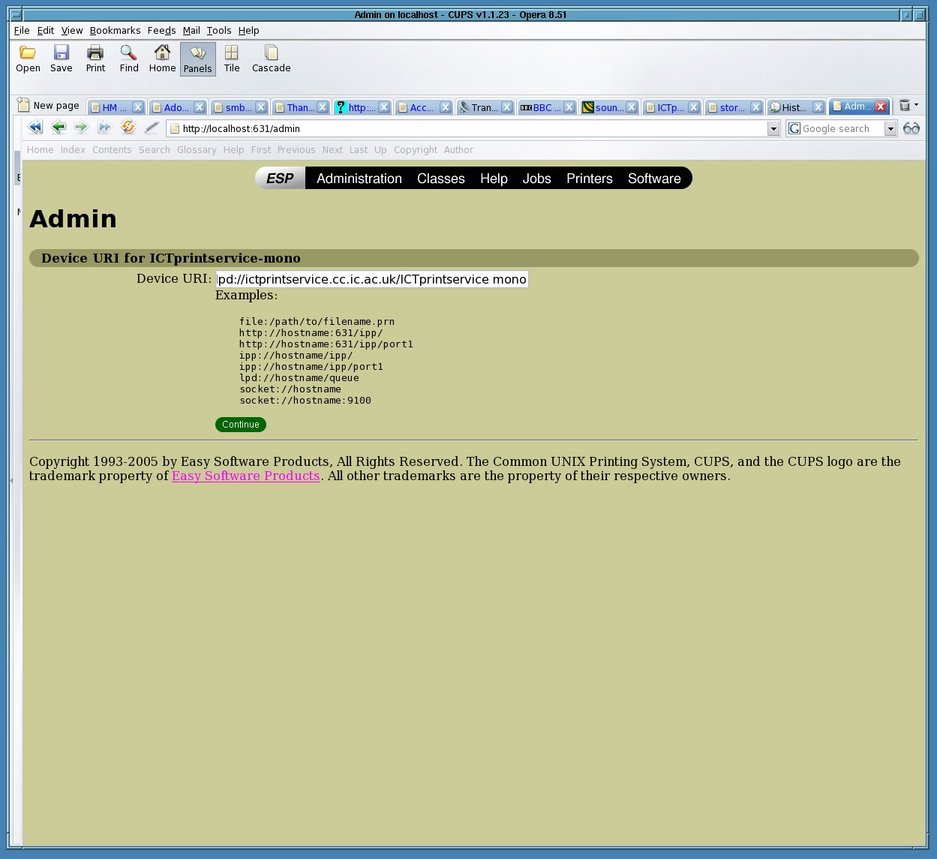
- and click on Continue; select
HP
from the printer Make: list:

- before clicking on Continue and then select the
HP LaserJet 9040_9040_MFP Foomatic/hpijs (en)
driver from the Model: list; click the Continue button again:

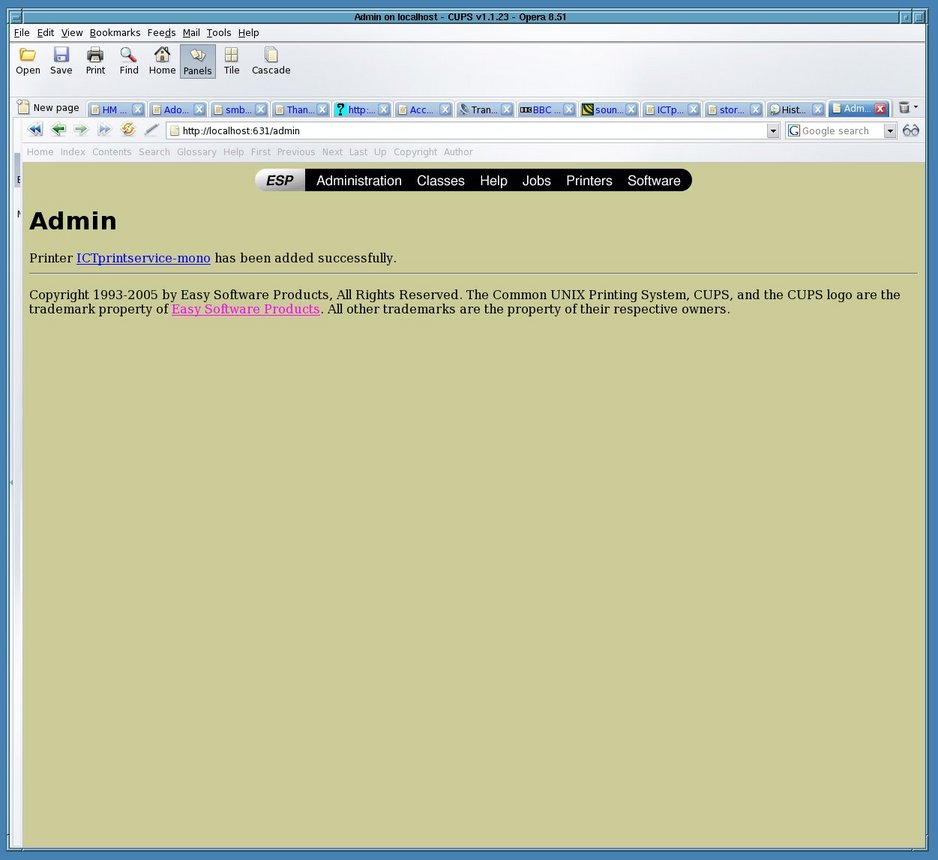
- That's it! The next screen should confirm you have successfully added the new ICTprintservice-mono print queue to your computer.
Testing your new ICTprintservice queue
- Now is the time to test your new print queue; click on the link to the queue you have just added - in this case
ICTprintservice-mono
and you will come to the control panel for your printer:

- Click on the Print Test Page button to send a test page and you should receive the acknowledgemnt:

- Now you can go to the ICTprintservice printer of your choice and if all is well, print the test page.
It didn't work - no documents were waiting for me at the printer
- If your document failed to print, you may need to restart the CUPS printing system, cupsd (or cups on some systems) to read in the new configuration settings. You will need to be root to do this on most systems and the exact method will vary from one Linux or UNIX version to another. On most Linux systems, typing:
/etc/init.d/cupsd restart
will restart a running CUPS system but if your Linux distribution is more like BSD, then you can restart CUPS with:
/etc/rc.d/rc.cups restart
- For FreeBSD UNIX systems, CUPS is restarted with:
/usr/local/etc/rc.d/cups.sh restart
- If you are still unable to retrieve your print copy, make sure that the username you are logged in as on your computer is a valid college username for which you have the correct, matching ID swipe card. You may have more than one computer account on your system for which only one is linked to your college ID, or you are using a private machine or research cluster whose usernames do not match the college-wide usernames. In that case you will not be able to print to the ICTprintservice printers unless your login account is altered or another one set up with a username that matches your primary college username.
Andy Thomas
UNIX/Linux support,
Faculty of Natural Sciences
last updated: 27.01.2006