Configuring Pine to read your mail on the Exchange servers
If you use Pine to read your mail using the existing Math Physics mail server, tera, then you will have to make a few small changes to the configuration of these mail clients to be able to read your mail on the central Exchange servers instead. These changes configure Pine or Netscape to use the Exchange servers' POP3 server instead of getting the messages from an SMTP mail spool.
About the Exchange servers
- Almost all of you will have your mail account will be on the Exchange server icex3.cc.ic.ac.uk, which is one of the Exchange servers. (One or two of you will have accounts on another server, icex7.cc.ic.ac.uk which has traditionally been the home for Maths Exchange users but this server is apparently full).
- As you will be using Pine's inbuilt POP3 client, Pine will require the server address to have /pop3 appended to it. So if your mail server is icex3.cc.ic.ac.uk, then when you use POP to retrieve your mail the mail server address will be:
- icex3.cc.ic.ac.uk/pop3
About usernames under Exchange
- Microsoft Exchange uses rather different usernames from those you may be used to with Unix or Linux. The username string is a lot more complex and contains three main components - in addition to your actual username (which strictly speaking is known in Windows circles as your login name, rather than your username), it also embodies the Windows domain you belong to and the first part of your college email address, up to but not including the '@' as follows:
- Windows domain\login name\email address
So, suppose your name happens to be Joe N. Bloggs and you have the college username jnb and the email address joe.bloggs@ic.ac.uk: your Exchange username would be:
- IC\jnb\joe.bloggs
Configuring Pine
- When using Pine with a POP server, your Exchange mail server address and your POP username are combined into a single string enclosed in curly braces, which defines your mail inbox. The syntax is:
- {mail server/user=username}
So if you are Joe Bloggs with the username and mail address as in the example above, your combined server/username inbox string will look something like:
- {icex7.cc.ic.ac.uk/pop3/user=IC\jnb\joe.bloggs}
- Start up pine in the usual way by typing pine at the Unix prompt
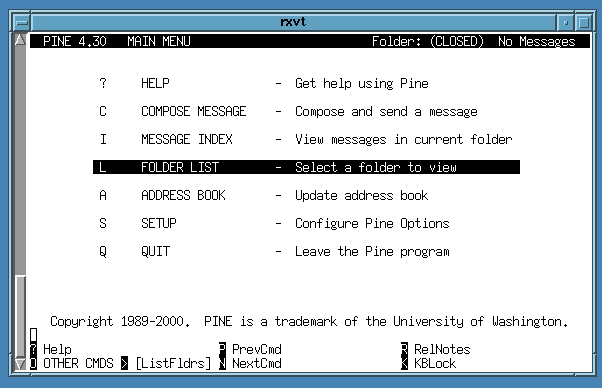
- Now select the S SETUP option using your cursor keys

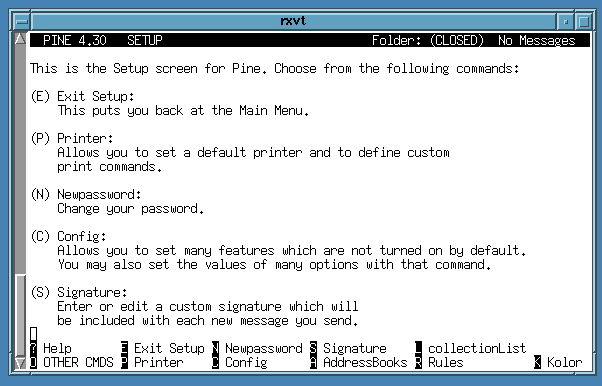
- Type the letter C to select the configure mode
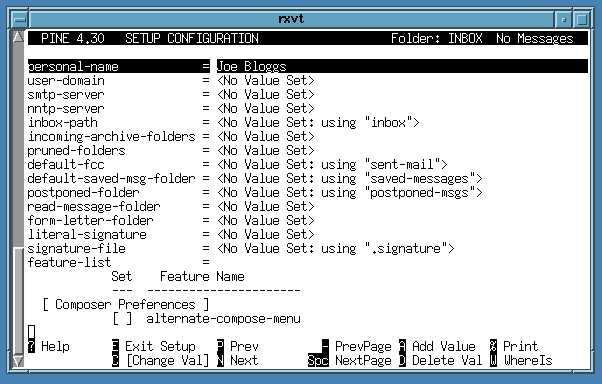
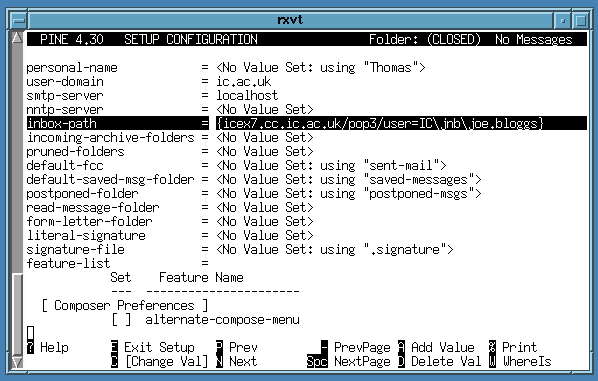
- Locate the line beginning with inbox-path and press the return key (this will usually be on the fifth line down from the top)
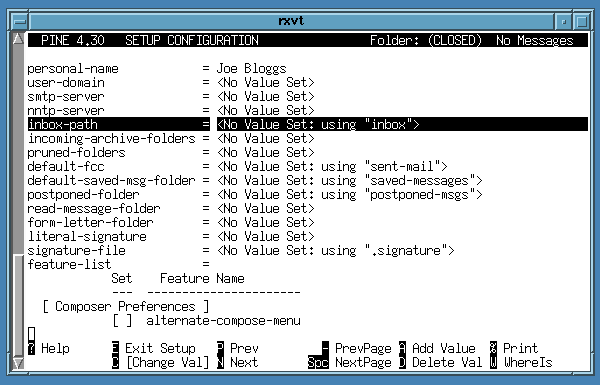
- You will probably see this already set to something like No value set: using inbox: delete this and type in your Exchange server/username inbox string; for example, if you really are Joe Bloggs, then you'd type:
- {icex7.cc.ic.ac.uk/pop3/user=IC\jnb\joe.bloggs}

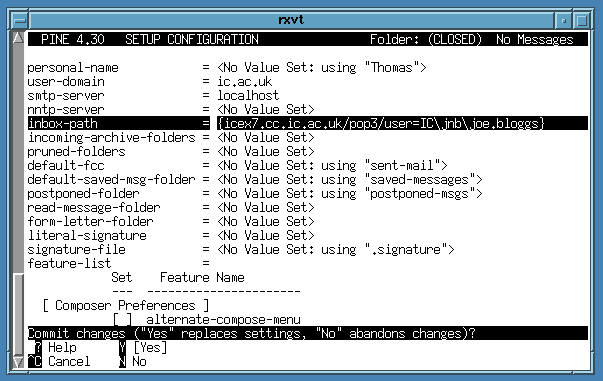
- Press return to accept the change, then press E to exit from setup ...
- ... answering yes when prompted.
- Now you can use Pine to retrieve your mail in the usual way by pressing L to select your inbox folder:

- you will be prompted for your password - this is your central college computer account password, not your Maths Physics cluster password which may well be different (it ought to be, for security!). As the fictional user Joe Bloggs doesn't really exist (even on the Maths Physics cluster), the screen shot below shows a reasl user's password prompt ...
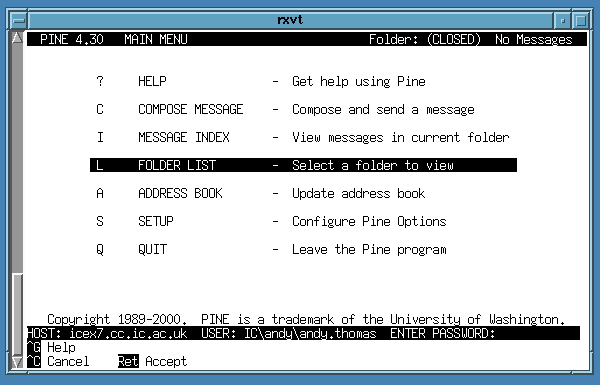
Note how Pine displays the username with the forward slash that you typed into the configuration screen as a backslash.