Accessing R Studio on apollo via PuTTY on Windows systems from outside the college
-
- First, follow the generic instructions for setting up port forwarding using PuTTY, creating a new PuTTY configuration for apollo.ma.ic.ac.uk and replacing all references to "cfm-ic1.ma.ic.ac.uk" on those pages with apollo.ma.ic.ac.uk. When you reach the 'Tunnels' dialogue box, do not configure this box as shown in the example screenshot in those instructions but instead configure it using the values for the source and destination ports listed below:
-
Source port:    8787
Destination:    localhost:8787
- and then click on the 'Add' button and the screen should now look like the one shown below:

- Once you have completed the 'Tunnels' dialogue, return to the 'Session' category at the top pf the left-hand pane and save the configuration using a name of your own choosing (something like 'apollo Rstudio' might be apt). Now click on the 'Open' button and log into apollo in the usual way, as shown in this example but using your own College username and password:

- Now start up your favourite browser (Firefox is shown in the example screenshot) and point it at:
-
http://localhost:8787
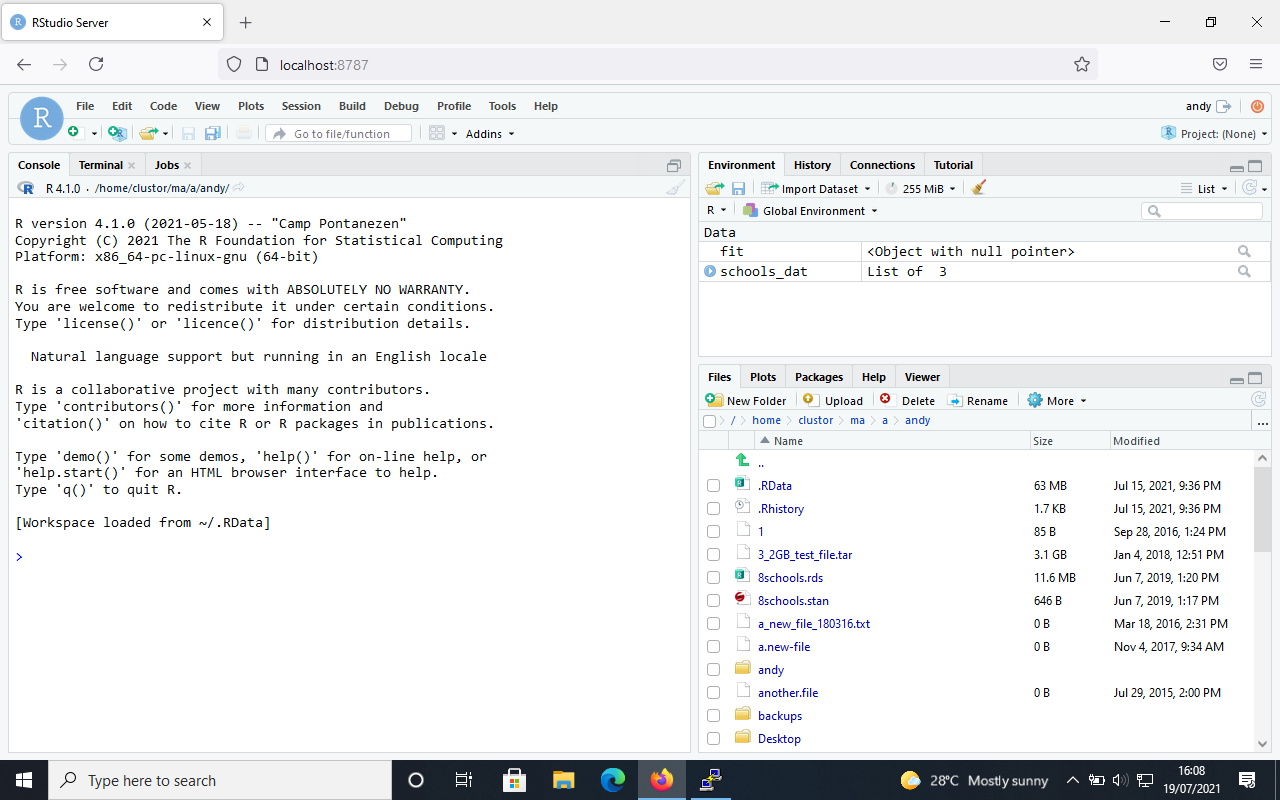
- and you should see the R Studio login screen where you can log into it using your College username and password; the following two example screenshots will give you an idea of what you should expect to see after a successful log-in to the R Studio server:

Andy Thomas
Research Computing Manager
Department of Mathematics
last updated: 22.07.21