Accessing Spyder 5 on apollo using PuTTY and Xming on Windows systems from outside the college
-
- Both the PuTTY ssh client for Windows and Xming X server software must be installed on your computer before you can use X Windows applications such as Spyder 5.
- First, configure Xming the way you would like it to behave; if you are new to using X Windows, on the next four screens it is suggested you choose one window, starting just the Xming X server, leaving access controls disabled and not storing your apollo login password (that is, your College password) in the final screen as shown below:
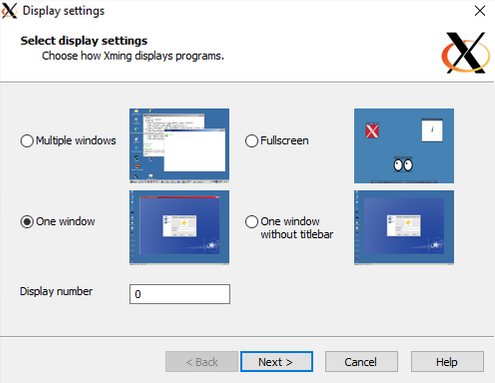
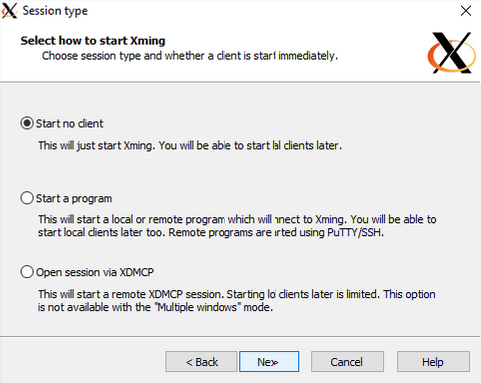
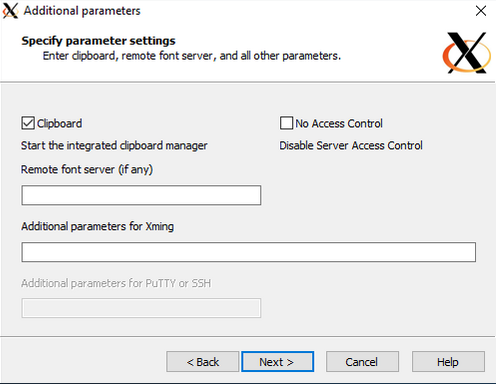
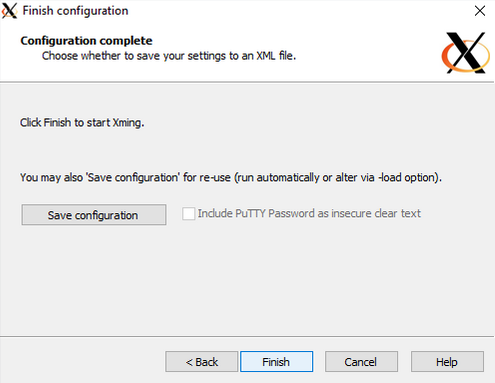
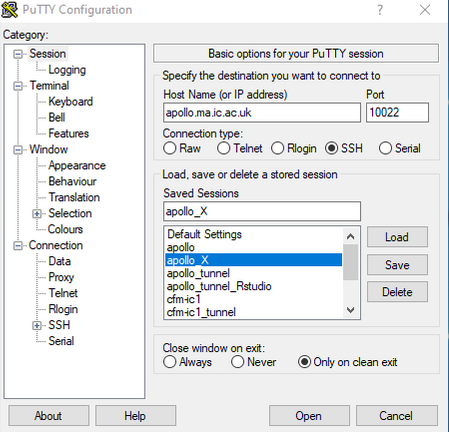
- Once you have completed customising Xming, start PuTTY and create a new configuration as shown in the next image and then click on 'SSH' in the left-hand pane to bring up the available options.
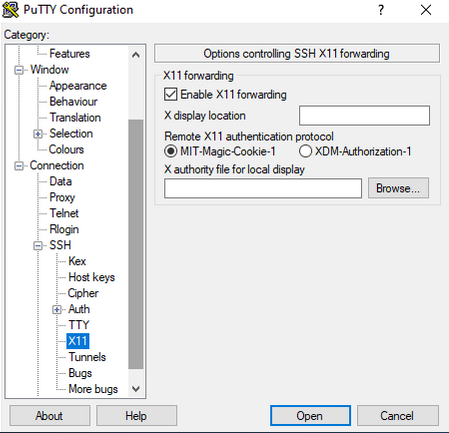
- Click on 'X11' and check the 'Enable X forwarding' box and leave the other options empty. You can save the configuation with a unique name of your own choice by returning to the 'Session' category at the top of the left-hand pane and saving it. Now click on the 'Open' button and log into apollo in the usual way, as shown in this example but using your own College username and password:
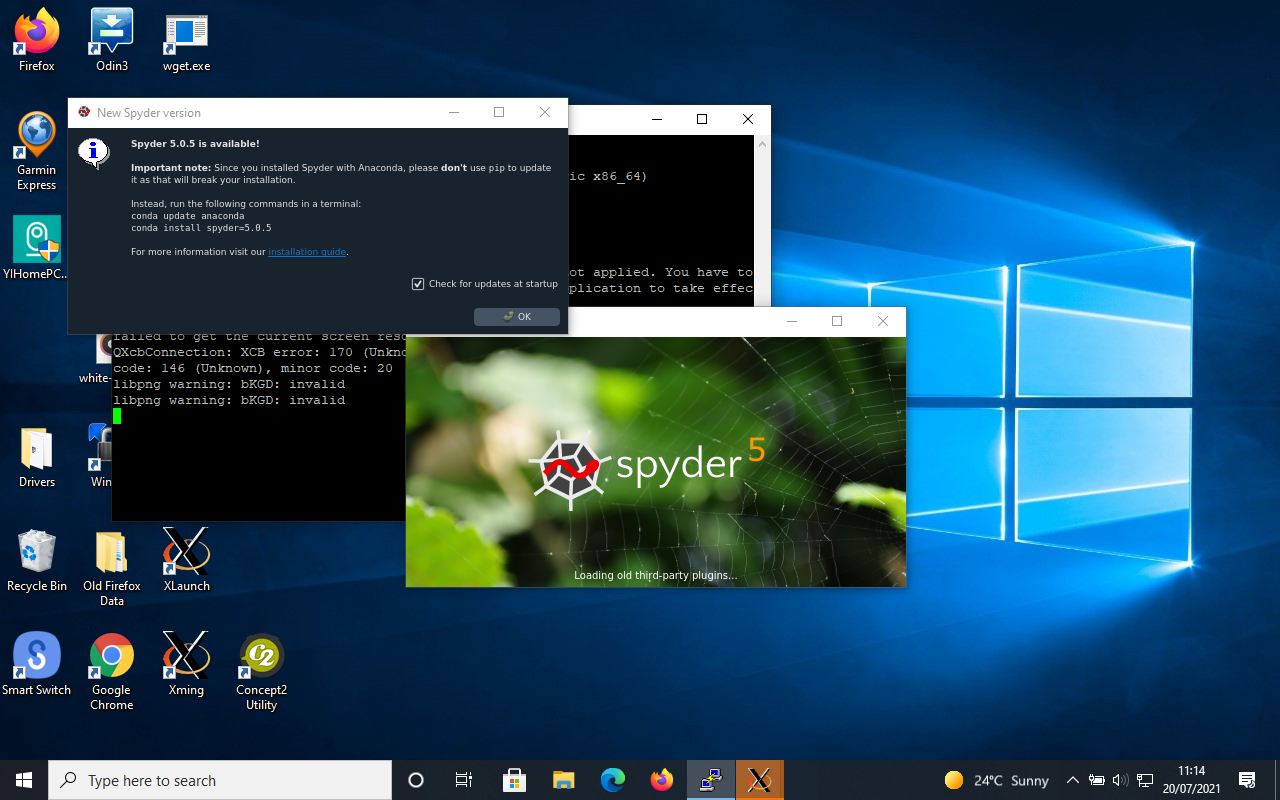
- Typing 'spyder' will start the IDE:

- If a dialogue box about a new version appears, spyder will pause loading until you close the dialogue box otherwise it will wait forever...
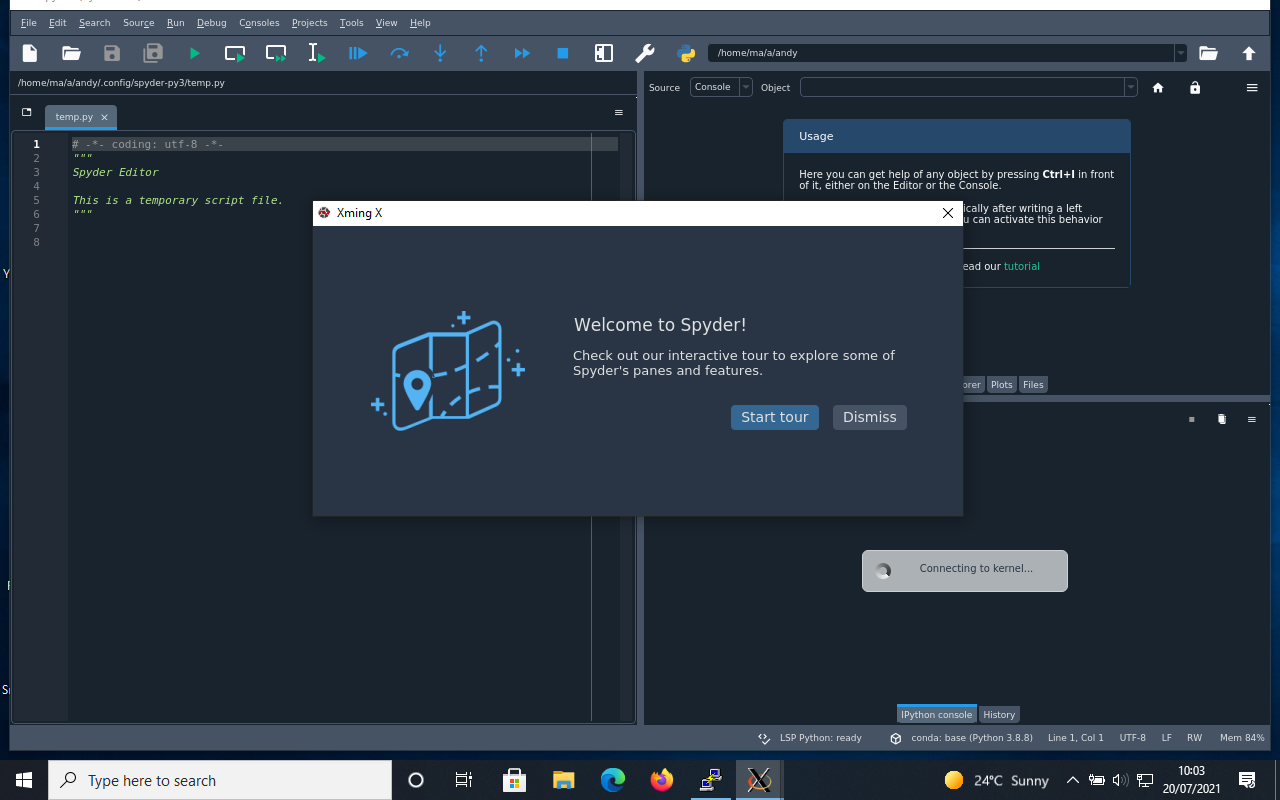
- Now you should be rewarded with the Spyder Python IDE appearing on your own computer:
Andy Thomas
Research Computing Manager
Department of Mathematics
last updated: 23.11.22